
Controls
These are the default controls. Every action can be remapped in Settings → Controls: click a slot, press the new key or button, done. Each action has two keyboard or mouse slots and one gamepad slot, and your layout is saved to your account (or to this browser if you play as a guest).
Keyboard and mouse
Section titled “Keyboard and mouse”| Action | Keys |
|---|---|
| Move forward | W or ↑ |
| Move back | S or ↓ |
| Move left | A or ← |
| Move right | D or → |
| Jump (press again in the air to double jump) | Space |
| Dive | Left Shift or Left Ctrl |
| Grab, hold to carry, release to throw | E or Left click |
| Swing the item you hold | F or Right click |
| Emote wheel (hold) | T |
| Camera mode (follow / free) | C |
| Spectate: previous bean | Q |
| Spectate: next bean | R |
| Pause and settings | Esc |
Click the game to lock the mouse; then moving the mouse turns the camera. Press Esc to get the cursor back. Mouse sensitivity and invert Y are in Settings.
Gamepad
Section titled “Gamepad”Any controller with the standard layout works (Xbox, PlayStation, Switch Pro and most others). Plug it in or pair it, then press a button.
| Action | Xbox layout (PlayStation: A = ✕, B = ○, X = □, Y = △) |
|---|---|
| Move | Left stick |
| Look around | Right stick |
| Jump (press again in the air to double jump) | A |
| Dive | B |
| Grab, hold to carry, release to throw | RB |
| Swing the item you hold | X |
| Emote wheel (hold) | Y |
| Pause and settings | Menu |
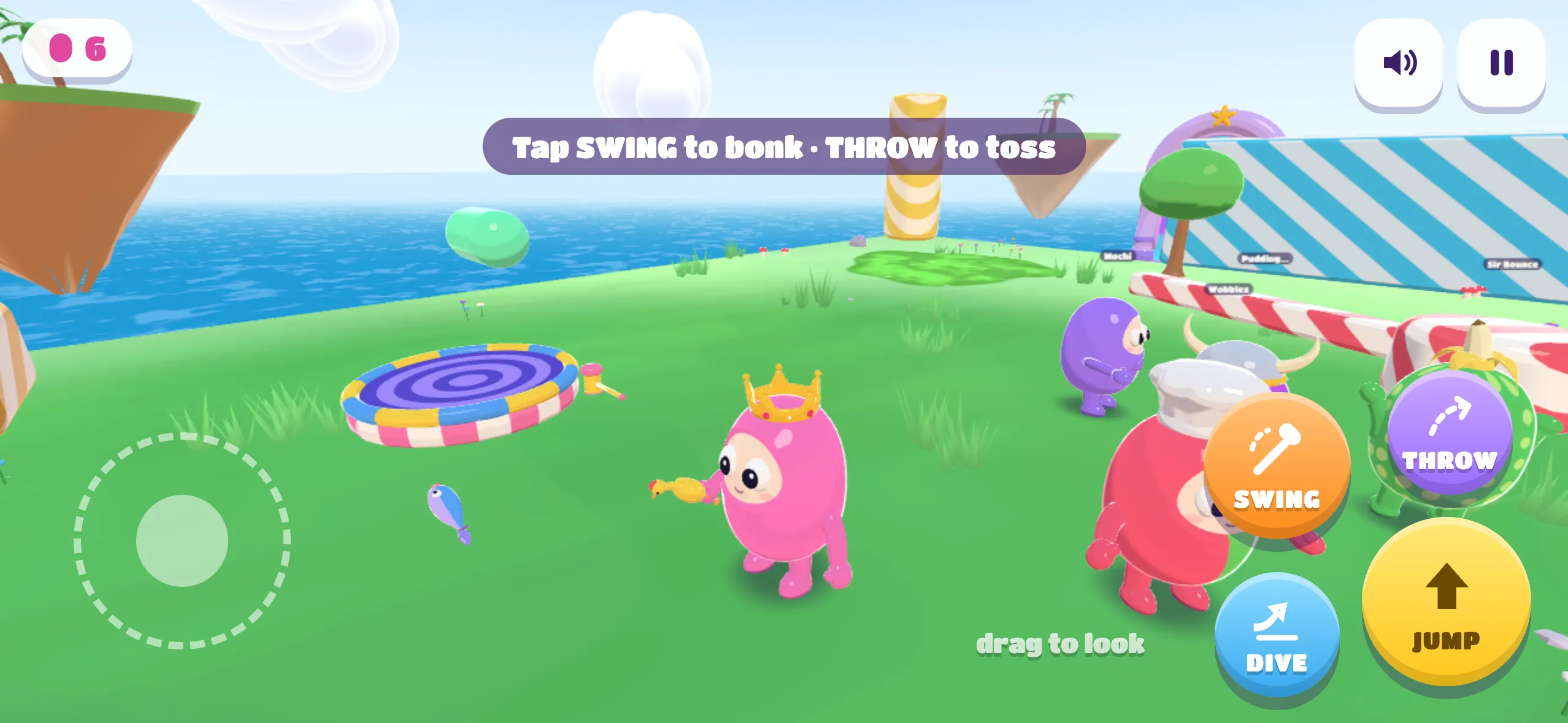
Touch (phones and tablets)
Section titled “Touch (phones and tablets)”| Where | What it does |
|---|---|
| Left half of the screen | Drag to move. The joystick appears where your thumb lands. |
| Right half of the screen | Drag to look around. |
| JUMP | Jump. Tap again in the air to double jump. |
| DIVE | Dive forward. Jump, then dive, for a long flying dive. |
| GRAB | Grab beans, props and items. Pulses when something is in reach, and turns into THROW while you hold an item. |
| SWING | Appears while you hold an item. Swing it! |
| 😀 | Opens the emote wheel and quick chat. |
Camera
Section titled “Camera”The camera follows you and swings behind you as you run. Drag (or use the mouse or right stick) to peek around, and it eases back. Press C to switch to free camera mode, which stays wherever you leave it. The mode is also in Settings.